A document can look ready to sign and still fail at the last step. One missing recipient, misplaced field or unclear signing order can leave an agreement incomplete even after someone has already signed it.
That creates problems when teams assume the process is finished before every required action is actually complete. The details behind the signature request matter just as much as the document itself.
This article walks through the 6 steps for sending a document for signature, then covers what happens on the signer’s side and how to handle requests that stall.
Here is how to send a document for electronic signature, from the final draft to the stored copy.
If the client signs while your team is still changing the fee, the signed copy is already out of date. Someone then has to cancel the request and send the new version. So only request a signature once the service agreement, NDA or engagement letter is final.
Fill in what you already know, such as the client’s name, company, fee and start date. The signer then just checks them and signs. In Clustdoc, you can prefill documents with form data before the signature workflow starts, which leaves clients less to type.
Save the final version as a PDF, so the layout stays the same on every screen. You can also send a Word document for electronic signature, once you check the converted file.
Some contracts point to a price list or a schedule of services. Add it to the same PDF, so the client signs the whole agreement.
List everyone who has to sign before you open your tool. For a client contract, that may be the client plus a director or partner on your side.
When the client is a company, ask who is allowed to sign for it. Otherwise the contract may come back signed by someone who does not have that authority.
Then choose the order. With sequential signing, the document goes to one person at a time. The client signs first, and your director countersigns after that.
With parallel signing, everyone receives the document at the same time. Two business partners can sign the same partnership agreement without waiting for each other.
Our signature workflow supports sequential or parallel signing and lets you set the signing order between signers. When one person signs, the document moves to the next person automatically.
Next, mark where each signer has to act. Most e-signature tools let you place fields on the page and assign each field to one person. The usual fields are:
Mark the fields that matter as required. An optional company number field lets the signer finish without filling it in. You end up with a signed contract that is missing a key detail.
Also check who each field belongs to. If your director’s signature field is assigned to the client, the client is asked to sign in the wrong place.
How sure do you need to be about who is signing? There are three ways to check, from light to strict.
The lightest check is a secure link sent to the signer’s email address. This can be enough for an everyday document such as an NDA, as long as the address is correct.
For a contract with more at stake, add a one-time code. The signer gets the code by SMS or email and enters it before signing. Our advanced electronic signature uses this check.
If the code goes by SMS, confirm the signer’s mobile number first. Mention the code in your email too, so it does not take the signer by surprise.
Sensitive files, such as a loan agreement or know-your-customer (KYC) paperwork, need an ID check too. We can make identity verification a required step. The client cannot sign until their ID is verified and approved.
The signature request email is the first thing the signer sees. Write it like a normal email from you, not a system message. Explain which document it is, why you need it signed and the date you need it by.
Put the document name in the subject line, so the client can spot it in a full inbox. Add the name of a person they can contact with questions before signing.
The due date should leave time for questions before the work is meant to start. Once it is set, turn on reminders.
We send automatic reminders by email or SMS, on a schedule or when something happens. A contract that is still unsigned can trigger one, and clients are notified when a signature is due or overdue.
Your team sends fewer chaser emails, because nobody has to write them by hand.
Contracts that only sit in an email thread are hard to find later. So when the last person signs, file the signed PDF with your client records, such as the client’s folder.
Keep the audit trail with the signed copy. It records details such as the time of each signature, the signer’s IP address and any one-time code check. If a client later says they never signed, this is the record you can show.
Every signature we capture is time-stamped and logged. When a document is completed, the signed copy syncs to your cloud storage, instead of someone downloading and re-uploading it.
All of that happens on your side. For the signer, it starts with an email and a link to the document. They open it in a browser, read the pages and fill only the fields you assigned to them.
Check what your tool asks a signer to do before they can start. A client who has to create an account first may stop there. Open your own request as a test and go through it yourself.
Electronic signatures are recognized in law across the US and the EU. The signatures we collect are legally binding under eIDAS.
A signer can usually decline instead of signing, or forward the request to the right person. Both actions tell you something that silence does not.
When the last person signs, most tools send every signer a copy of the signed document. We let you decide whether each signer receives it.
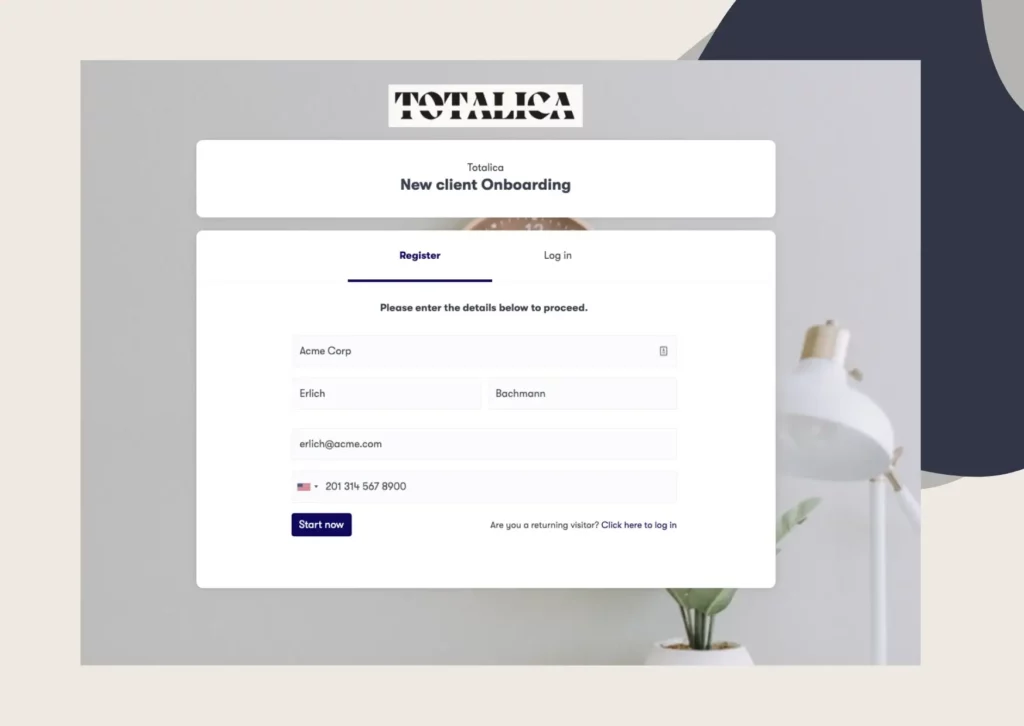
In our platform, the client opens one secure branded link. They complete the forms, upload the files you asked for and sign every document in the order you set.
The due date comes and goes, and the contract is still unsigned. Usually, one of three things has happened. The email never arrived, the signer cannot open it, or the signer does not want to sign.
Check the email address for a typo first. Then ask the signer to look in their junk mail and resend the request.
If they can open it and still will not sign, the problem is the document. Ask for the objection in writing, change the clause and send a fresh request.
Do not email a corrected copy as an attachment instead. You end up with two versions of the same contract, and only one of them has an audit trail.
You cannot edit a document once the request is out. Cancel the request, fix the file, then send the new version. Anyone who already signed has to sign again.
Put a version marker in the new file name, so nobody signs the old copy by mistake. Tell the client why a second request is coming before it lands.
Some new clients have more than one document to sign. An accounting firm may need an engagement letter, a data consent form and a direct debit mandate before work starts. Other jobs are the reverse: one document that many people have to sign.
Sent one by one, each document needs its own email, its own reminders and its own signed copy to track. The client can sign two of them and miss the third.
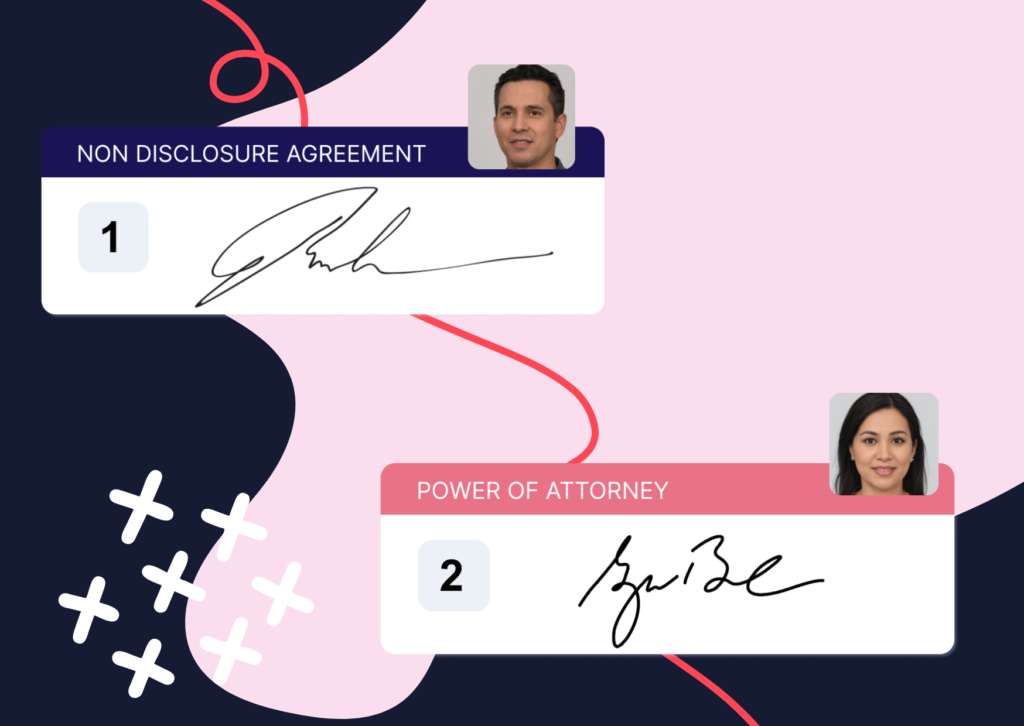
We put every contract, agreement and form a client needs to sign into one package. The client gets a single secure link and signs everything in the order you set. The engagement letter can come first, for example, and the direct debit mandate last.
Your team prepares the list of documents once and can reuse it for the next client.
That link opens a branded client portal that works from any device. In the same portal, the client can upload supporting files such as a passport or a bank statement. Your team then reviews the files and the signatures in one place.
A bulk send is the other shape. You upload one document, add a list of people, and each of them gets their own copy to sign.
It fits a document that reads the same for everyone, such as a policy acknowledgement or a consent form for a group of clients. The signed copies come back separately, so you still track each one.
For onboarding a client, though, it is the wrong tool. Each client signs a different agreement, with their own fee, dates and scope. They each need a request of their own.
On a demo call, our team can show you one Clustdoc request that collects a client’s files and signatures together.
Yes. Upload the final PDF, then scroll through every page before you place any fields.
Make sure each signature box sits on its signature line and does not cover any text. Check that a PDF scanned from paper is still easy to read on a phone. Name the file after the document type and the client, which makes it easy to find once signed.
Yes. If your tool turns the Word file into a PDF first, the conversion can move things around. A line break can shift, a table can split across two pages, or the page numbers can change.
Remove tracked changes and comments first, or they can end up in the signed copy. Read the converted file from start to finish. Fix anything that moved in Word, save it as a PDF yourself and upload that file instead.
Usually, yes. The signer opens the link on their phone, reads the document and signs with a finger. In Clustdoc, clients can sign on a laptop, a tablet or a smartphone.
Before you send a long contract, open the request on your own phone. Check that the text is easy to read and every field is easy to tap. Move any field that is hard to reach, or make it bigger.
You will normally get a notification as each person signs and when the last signature is in. In Clustdoc, your team can also see the status of every pending document at a glance.
For proof rather than a status, open the audit trail, which shows when each person signed. Save only the copy that shows every signature. A half-signed version in the client folder can be mistaken for the final one.
Still stitching emails, files, and approvals together?
Clustdoc gives teams one place to run client-facing work, boost customer engagement and increase compliance.

Claire writes about customer onboarding, digital processes, and the day-to-day challenges faced by operations teams. At Clustdoc, she focuses on practical insights: how organizations collect information, guide customers through complex steps, and improve service delivery with automation.